Home / Windows
Voicemod Pro on Windows
Windows 10 and 11. Install the desktop app, then Sound → Recording should list Voicemod. Set it as default communication device before you open Discord or a game.
Download for Free How to download
ZIP password: voicemod
- Windows & macOS
- Discord, games, OBS
- Voice changer + soundboard
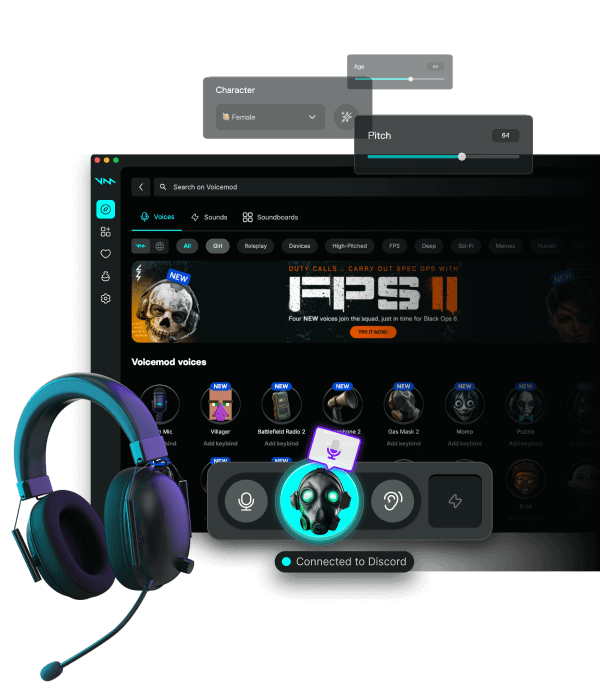
After install
Reboot once if the device is missing. Disable exclusive mode on USB headsets (device properties → Advanced). Fully quit Discord from the tray, then pick Voicemod as input.
Default vs per-app
Some titles ignore Default and keep the headset name. Open their audio settings and choose Voicemod. Anti-cheat does not need a special inject — it is a recording device.
Consoles and phones
PS5 and Xbox parties do not see this Windows device. Native mobile apps do not either. A PC mix or companion is a different path.
Safe installer
Skip random Telegram ZIPs. Use the Download button on this site.
FAQ
Windows Recording is empty?
Reinstall from the download page, reboot, disable exclusive mode, then look again. Unsigned random installers often fail here on purpose.
48 kHz?
Yes. Match headset, Voicemod Pro, and Discord to 48 kHz to avoid static.